How to Import Your Novel from Google Docs into GrinTale, Chapter by Chapter

In 2025, self-published titles in the United States jumped 38.7%, passing 3.5 million against 2.5 million in 2024 (Publishers Weekly, 2026). More and more people are writing a book outside traditional publishing, and almost all of them start in the same place: a Google Docs file open in a browser tab. The problem shows up once that document grows, and you want to move it somewhere else without losing hours to cutting and pasting one chapter at a time.
This article walks you through the whole path: from exporting the file out of Google Docs to importing it into GrinTale, with chapters already split into separate documents.
What you'll find in this article
Google Docs exports natively to Word format (.docx): the whole step takes less than a minute
GrinTale automatically detects chapters in the imported file, both from Word heading styles and from text patterns like "Chapter 3"
Before creating any document, GrinTale shows you a preview with the list of detected chapters: nothing gets split without your confirmation
In that same preview you can select two or more chapters and merge them into a single document, before you even confirm the import
The 15-day trial doesn't require a credit card, so you can try the import before deciding whether to stay
Why move a long manuscript out of Google Docs?
Past 90,000 words, several users report real typing slowdown in Google's own support community, with the recommendation to split the document roughly every 10,000 words to keep it responsive (Google Docs Editors Community, retrieved 2026-07-17). The average novel runs between 70,000 and 100,000 words depending on genre (Reedsy, 2026): close enough to that threshold to matter.
If you landed here searching "how to import from Google Docs" rather than "should I switch tools," you've probably already made the call. If that question is still open, this article answers exactly that, without pushing you in either direction. From here on, we're assuming yes, and focusing on how.
How do you export a manuscript from Google Docs to Word format?
You export from Google Docs with File → Download → Microsoft Word (.docx), an operation that takes a few seconds and doesn't touch the original document at all, which stays untouched on Google Drive. The downloaded .docx file keeps bold, italics, heading styles, and the structure of the text, ready to be imported elsewhere.
One detail makes a real difference: if you used Google Docs' Heading 1 or Heading 2 styles to mark the start of each chapter (even just applying them once, from the Format → Paragraph styles menu), that structure carries over into the .docx file and lets GrinTale recognize the chapters automatically. If instead you typed "Chapter 3" as plain bold text, that's fine too: GrinTale recognizes it either way, as we'll see in a moment.
How does import with automatic chapter splitting work?
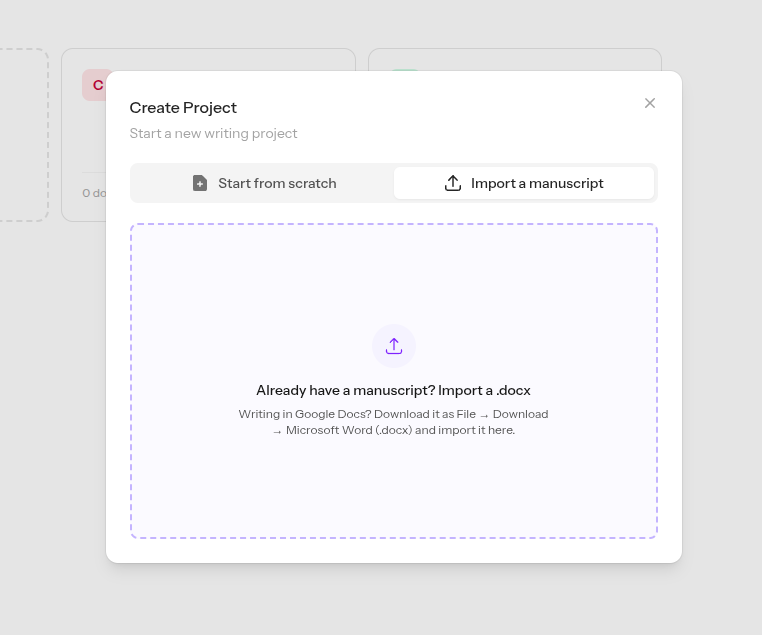
GrinTale reads the uploaded .docx file and finds the chapters automatically, without saving anything until you confirm. If the manuscript uses Word heading styles, it recognizes them from there. If you just typed "Chapter 3" as plain text at the start of a paragraph, GrinTale still catches it, chapter by chapter, with nothing special for you to format.
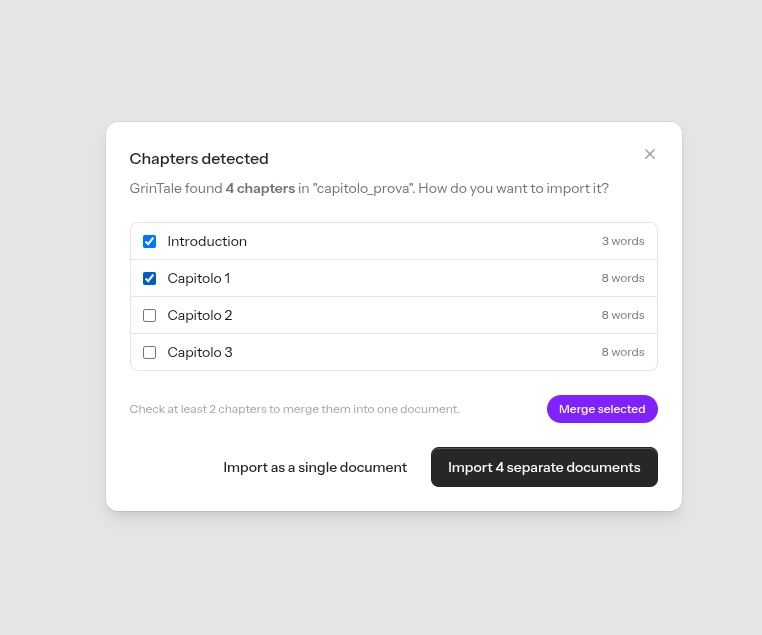
If two or more chapters get detected, GrinTale opens a preview window before creating any document, showing the full list: title and word count for every chapter it found. From there you choose between two options, "Import N separate documents" or "Import as a single document." If you'd rather keep the whole manuscript in one block, that stays a one-click option, not a requirement.
This confirmation step isn't a minor technical detail: a bad split, with a chapter cut in half, is worse than no split at all. Seeing what's about to happen before it happens takes that risk out of the equation.
The same window also lets you pick a middle ground between "everything separate" and "everything together": every detected chapter has a checkbox next to its title, and checking two or more of them enables the "Merge selected" button, which folds them into a single document before you even confirm the import. That's handy when, say, a short prologue or an appendix doesn't deserve its own document and you'd rather fold it into the next chapter. Change your mind, and the "Undo merge" button next to any merged group splits it back into its original chapters, no need to restart the import from scratch. The number on the confirm button updates automatically based on how many groups are left after merging.
What happens to your manuscript once it's imported into GrinTale?
Every detected chapter becomes a separate document in the Binder, with the heading title as the document name and the word count visible at a glance. From there you can drag chapters to reorder them, open the Corkboard to see every chapter as a card side by side, or switch to the Outliner for a compact hierarchical list.
Character sheets stay separate from the text, so you don't need to keep a second notes file open in another window just to remember a character's eye color by chapter twenty. And if an imported chapter needs a deeper revision down the line, Snapshots save a picture of the current version before you touch it.
Try the import free, for 15 days
You don't have to decide right away whether GrinTale is for you. The trial lasts 15 days, doesn't require a credit card, and lets you import your manuscript right away, to see for yourself what it's like to write with an app built specifically for writers.
Try free for 15 days. No credit card required.
If you decide to stay, the subscription costs €29/year (about €2.40/month). Cancel anytime, from settings.
Frequently asked questions
Can I also import a file written directly in Word, not just one exported from Google Docs?
Yes. GrinTale imports any .docx file, whether you wrote it in Word, in Google Docs, or in another editor that exports to that format, LibreOffice included. Where the file comes from doesn't change how the import works: what matters is the format it arrives in, not the program it was originally written in.
What happens if my manuscript doesn't have recognizable chapter titles?
If GrinTale doesn't detect at least two chapters, no confirmation window opens: the file gets imported as a single document, exactly like before this feature existed. You lose nothing, you just don't get the automatic split, and you can still split it by hand later, directly in the Binder.
Does the import also read numbered lists, footnotes, or highlighted text?
Tables come through correctly. Footnotes and numbered or bulleted lists remain a known limit: during conversion they can lose part of their structure, for example a footnote reference ending up isolated from the surrounding text, or a list losing its numbering. Text highlighted with a background color doesn't carry over. These are limits of the libraries that convert .docx to HTML, not something specific to GrinTale, and they don't affect a novel or short story without these elements.
Do I lose my manuscript's formatting during the import?
No, not for the formatting commonly used in a fiction manuscript: bold, italics, underline, chapter headings, tables, and images embedded in the file arrive intact in GrinTale's editor. The cases where you might notice a difference are the ones described above: footnotes, numbered lists, and highlighted text.
The bottom line
Google Docs remains a great place to write a first draft. The moment it's worth moving elsewhere doesn't depend on some magic word count, it depends on how much you're already compensating for by hand: separate notes files, chapters reordered by cutting and pasting, a structure you've stopped being able to hold in your head. When you get there, exporting from Google Docs takes a minute, and the import into GrinTale does the rest, chapter by chapter, with a preview before anything happens.
SOURCES
Publishers Weekly, "Book Output Topped Four Million in 2025", retrieved 2026-07-17, https://www.publishersweekly.com/pw/by-topic/industry-news/publisher-news/article/99943-book-output-topped-4-million-in-2025.html
Google Docs Editors Community, "Docs slows down at 90,000 words. Is there a workaround?", retrieved 2026-07-17, https://support.google.com/docs/thread/285021084/docs-slows-down-at-90-000-words-is-there-a-workaround?hl=en
Reedsy, "How Many Words in a Novel? (Updated for 2026)", retrieved 2026-07-17, https://reedsy.com/studio/resources/how-many-words-in-a-novel
Pronto a scrivere il tuo prossimo capolavoro?
15 giorni gratis, nessuna carta richiesta.